
Back up your iPad
Skip this step if you already backed up your iPad.
Please note that you are about to install beta software. Always back up your data and files before installing beta versions of iPadOS. We recommend that you do a backup using Finder/iTunes. Make sure the "Encrypt local backup" option is checked and click the Back Up Now button.
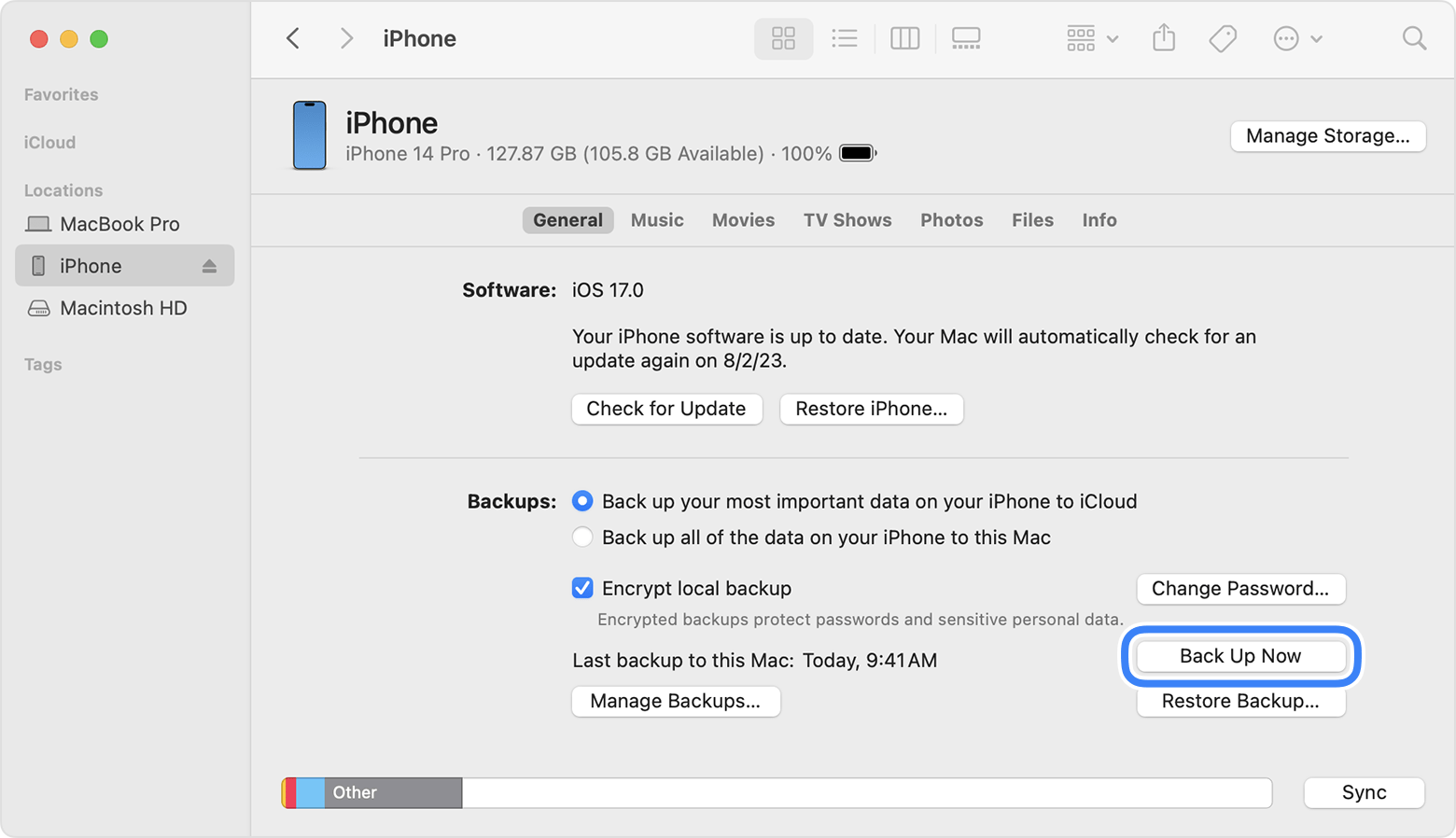
Note: If you have not upgraded to macOS Catalina or later, you can archive a backup using iTunes. We recommend that you do an iTunes backup and archive it before installing the iOS beta.
Learn how to backup your iPad →Sign in to Apple Developer Program
Skip this step if you have previously joined the Apple Developer Program with your Apple ID.
Go to Developer.apple.com/account, log in with your Apple Account. Then agree to the terms and conditions and move on to the next step.
Learn how to join the Apple Beta Software Program →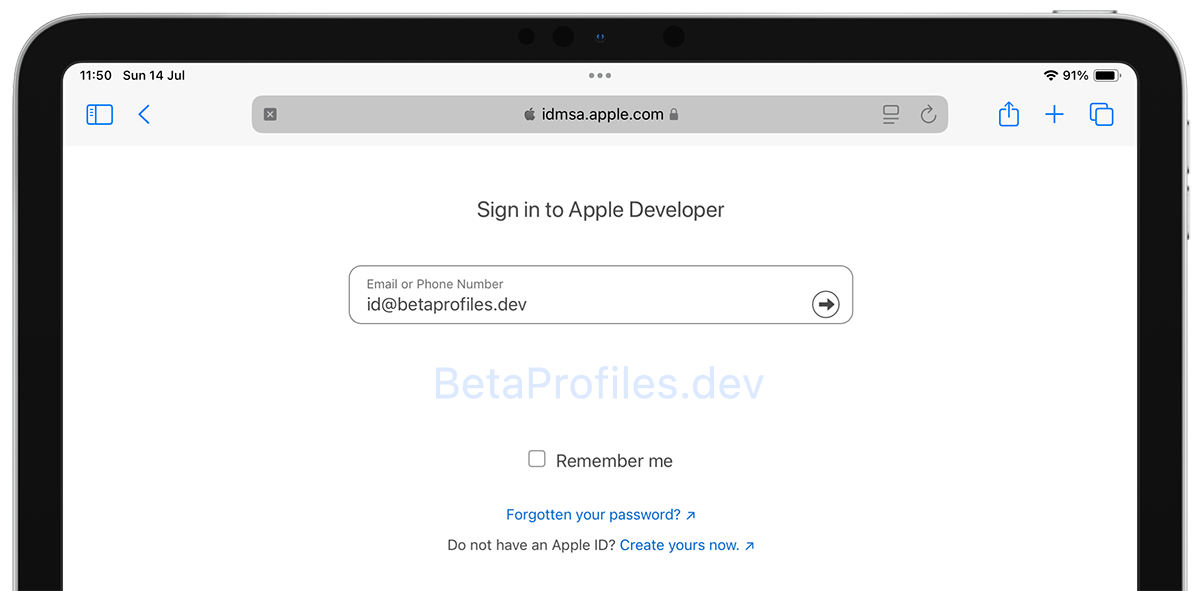
Turn on beta updates
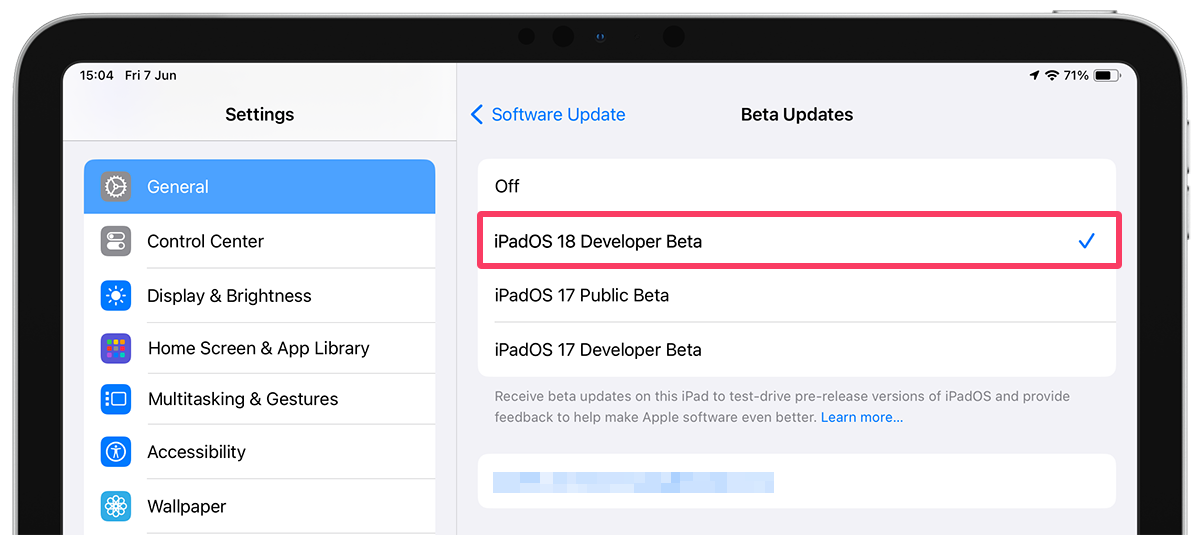
Go to Settings > General > Software Update > Beta Updates and choose the iPadOS 18 Developer Beta option.
Update your iPad
Go back to the Software Update and wait for iPadOS 18.7.10 Beta to appear. Tap the Update Now button to start downloading and installing the update on your iPad.
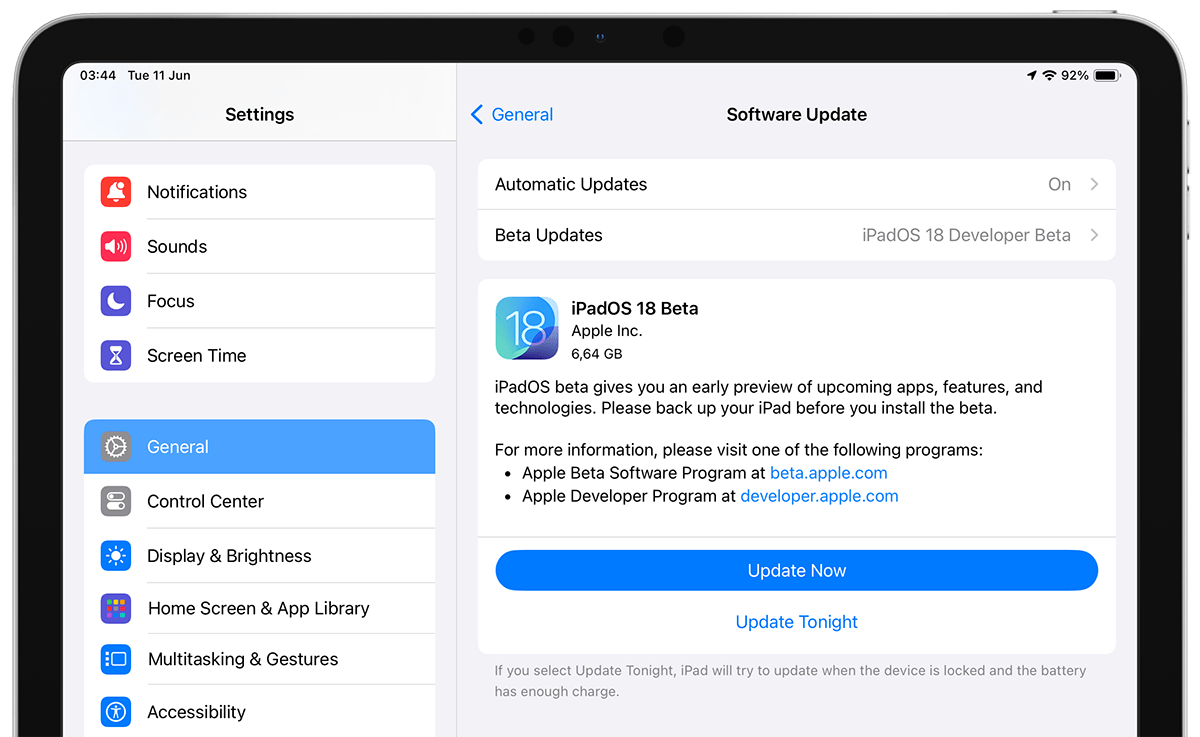
If you don’t see the iPadOS 18.7.10 Beta appear, try swiping down on the Software Update page a few times to refresh it.
You can always switch to the "Off" option in the Beta Updates to stop receiving future iPadOS 18.7.10 Beta updates.
Unenroll your devices to stop receiving Beta Updates →Using .ipsw file
You can also use official .ipsw files from Apple to update iPadOS 18.7.10 Beta. However, this method requires you to have a Windows PC or Mac to perform the installation.
Official ipsw files can be found on the website: IPSW.dev →
A Step-by-Step Guide: How to Install IPSW Beta for iPhone and iPad →
Backup your iPad
Please note that you are about to install beta software. Always back up your data and files before installing beta versions of iPadOS. We recommend that you do a backup using Finder. Make sure the "Encrypt local backup" option is checked and click the Back Up Now button.
Learn how to backup your iPad →
Sign up to Apple Beta Software Program
Skip this step if you have previously joined the Apple Beta Software Program with your Apple ID.
Go to beta.apple.com, tap on Sign up, and log in with your Apple Account. Then agree to the terms and conditions and move on to the next step.
Learn how to join the Apple Beta Software Program →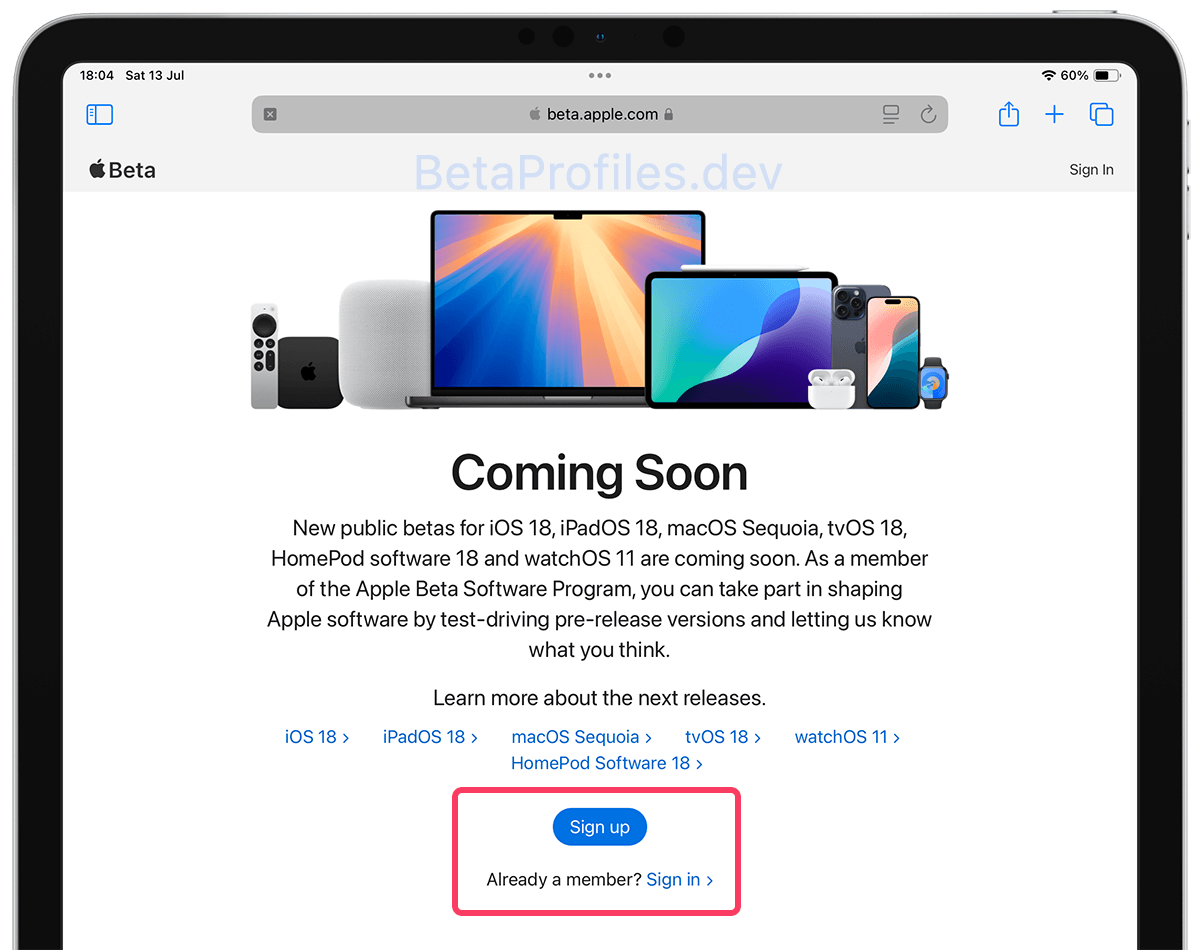
Turn on beta updates
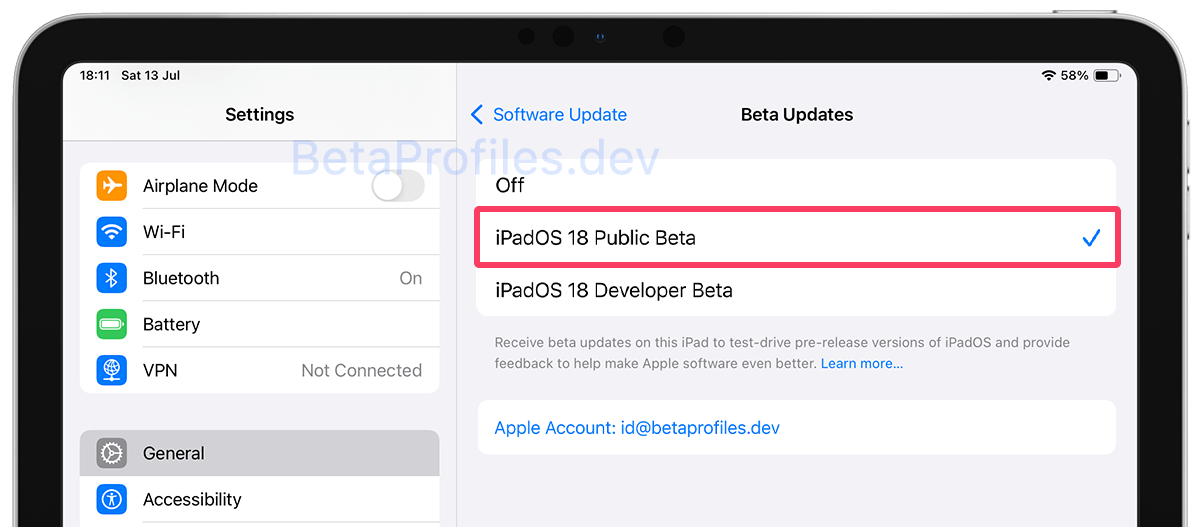
Go to Settings > General > Software Update > Beta Updates and choose the iPadOS 18 Public Beta.
Update your iPad
Go back to General > Software Update, and the iPadOS 18 Public beta update will appear. Tap Update Now to begin downloading and installing this update on your iPad.
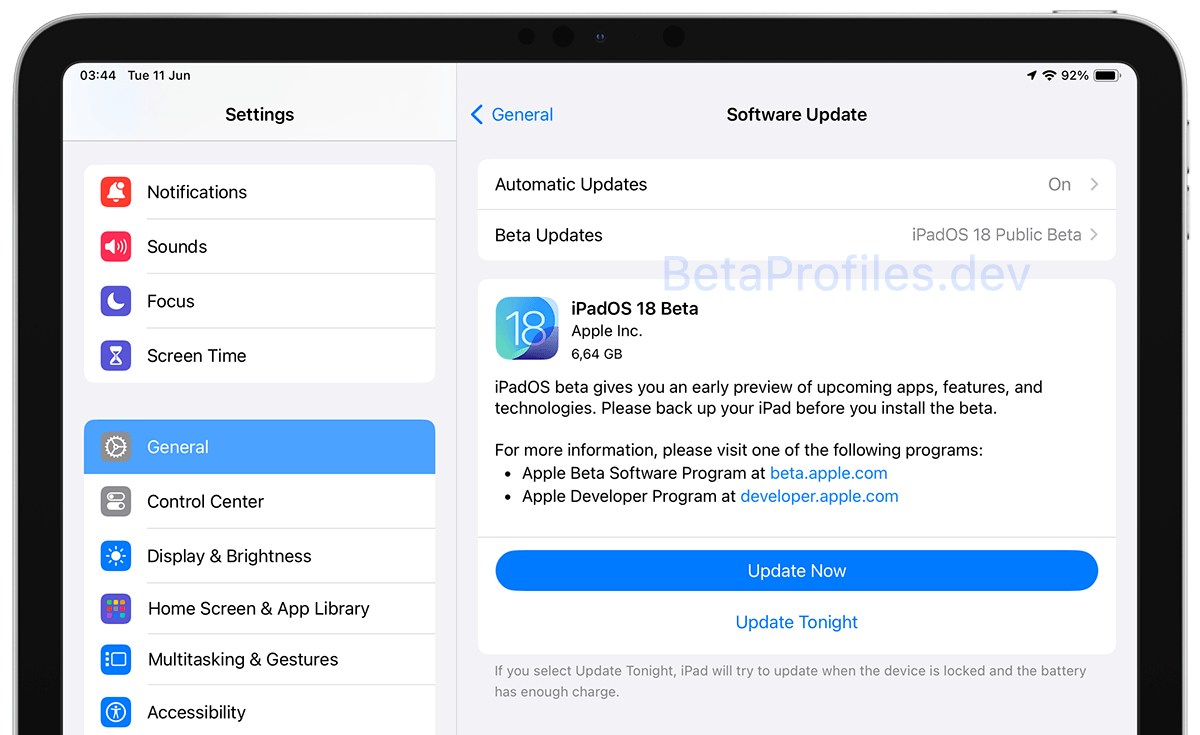
You can always choose to turn off beta updates anytime by going to General > Software Update > Beta Updates > Off.
Unenroll your devices to stop receiving Beta Updates →If you want to roll back to the previous stable version, you'll need to do this through your PC or Mac.
How to downgrade iPadOS 18.7.10 beta to a previous version →Provide Feedback
Once the beta is installed, it will come with a built-in Feedback Assistant app, which can be launched from the second page of your Home screen. When you come across an issue that needs addressing, send your feedback to Apple with Feedback Assistant.
Need Help?
Share this page