
Please note that this method will only give you the new Siri user interface as demonstrated by Apple at WWDC24; features related to Apple Intelligence will not work at this time and will be added in future beta releases.
This method may work on most iPhones and iPads running iOS 18 Developer Beta 1. As mentioned, this is just the new Siri user interface; no AI features are active.
Preparation
- Back up your device with iTunes or Finder.
- Temporarily turn off Find My iPhone in Settings [Your Apple ID] - Find My - Find My iPhone or iPad.
- A Mac or Windows PC
Enable New Siri UI
- Download and install Cowabunga Lite for Mac (you can easily find the download link from the first or second search result on Google).
- Connect your device via USB cable.
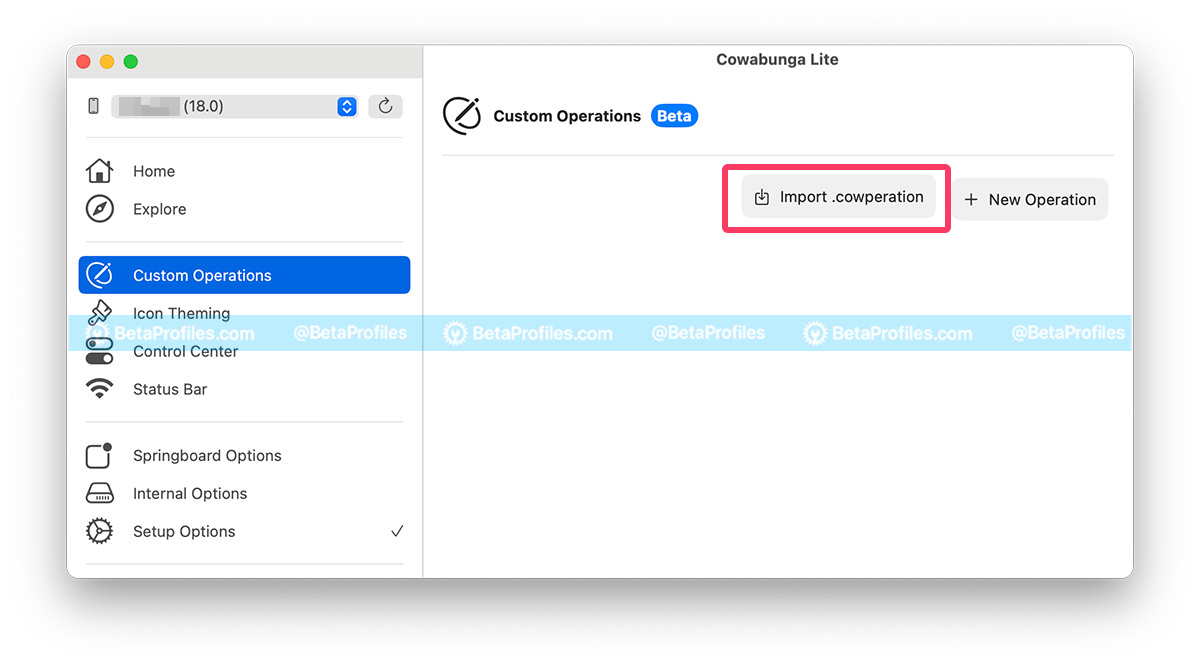
- Open Cowabunga Lite and click Custom Operation tab in the left column.
- Click the Import .cowperation button, select the iOS_18_Siri.cowperation file.
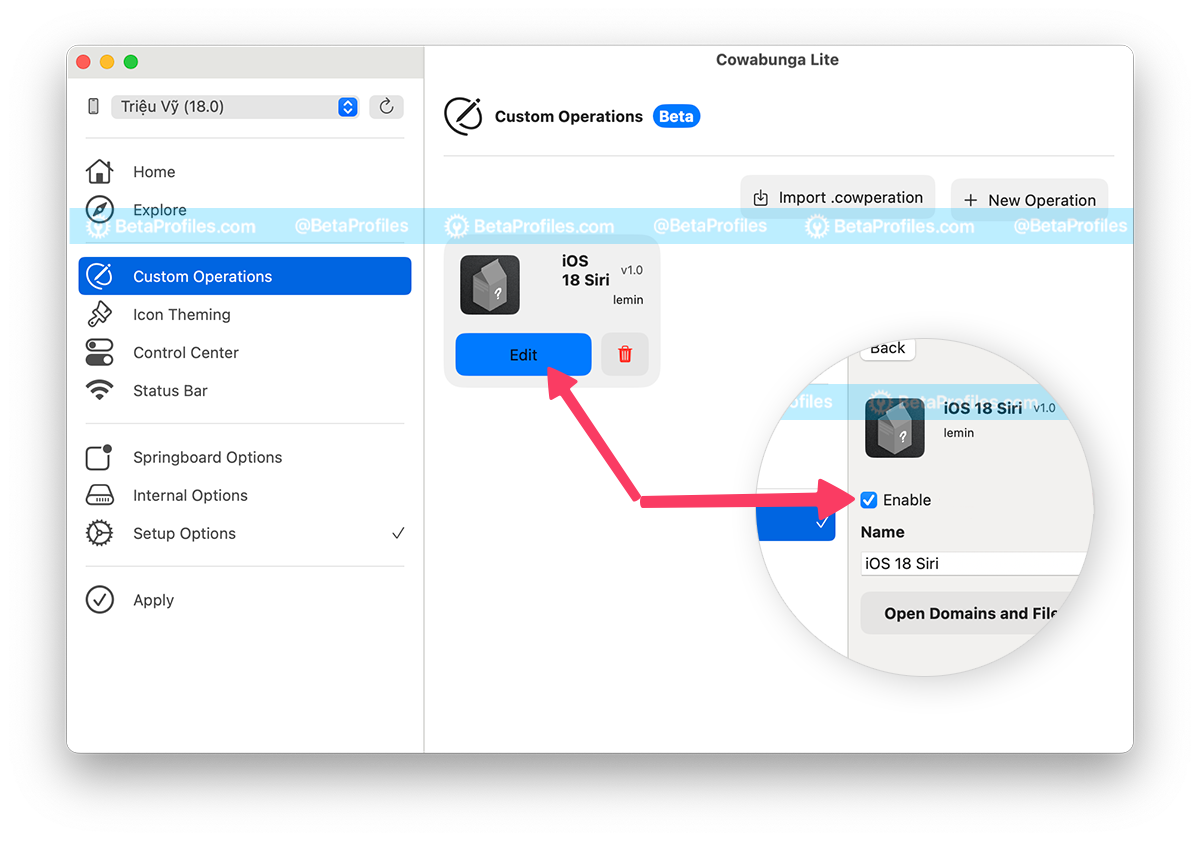
- Click on the Edit button, and check Enable.
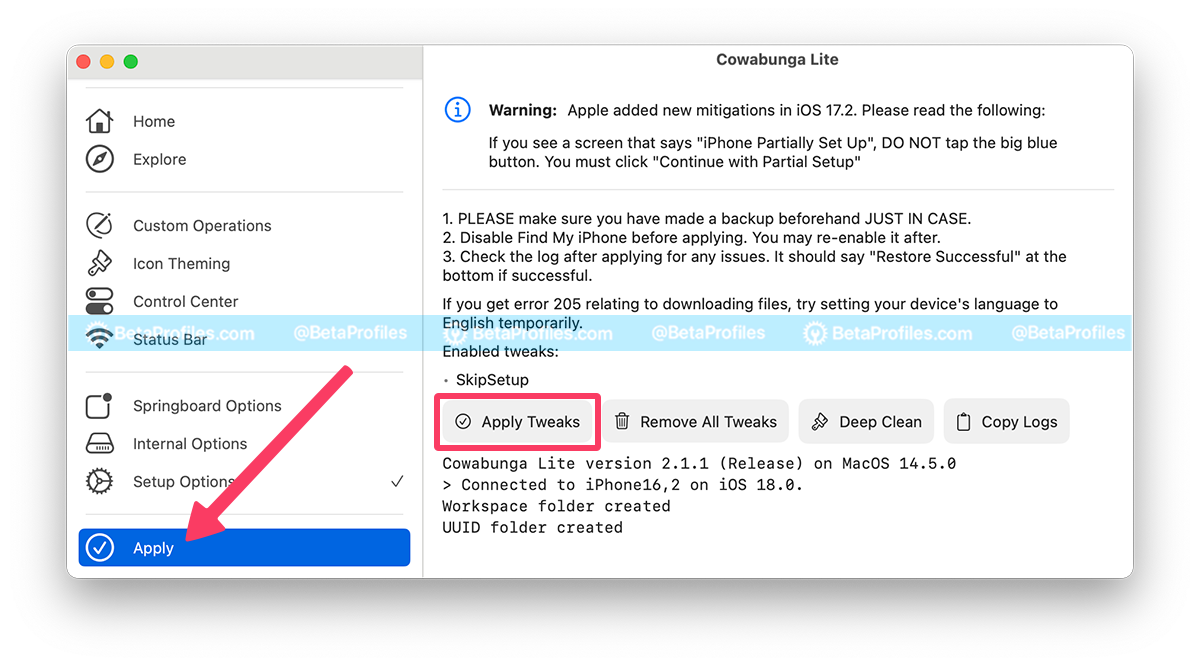
- Back to Cowabunga Lite, click on the Apply tab in the left column, then click the Apply Tweaks button.
- Download and install Cowabunga Lite for Windows PC (you can easily find the download link from the first or second search result on Google).
- Connect your device via USB cable.
- Open Cowabunga Lite and make sure the SkipSetup option is selected in the Setup Options tab.
- In File Explorer, go to
%APPDATA%/CowabungaLite/Workspace(or paste the path into the Run app), find your UUID, then go toSkipSetup/ManagedPreferencesDomain/mobile. - Add the file
com.apple.assistant.plistthat you downloaded below to this folder. - Back to Cowabunga Lite, click on the Apply tab in the left column, then click the Apply Tweaks button.
Remove New Siri UI
If the new Siri isn't working as expected or the new Siri user interface isn't optimized for your device, you can easily revert to the old Siri.
Simply follow the same steps as above, but use the files below to remove the new Siri UI. These files will essentially revert everything back to the way it was.
Need Help?
Share this page